


Blog
How to Block Phone Numbers on iPhone
In this day and age practically everybody has a phone in their pocket. There are different models of phones out there, but one of the most iconic and ubiquitous cell phone brands is Apple’s iPhone.
If there is one thing that is frustrating about virtually everyone having a phone it would be that the number of wanted calls has certainly been increasing for people. This is largely because there is now seemingly no such thing as a bad time to try and get in touch with somebody because most people have their phones on their person.
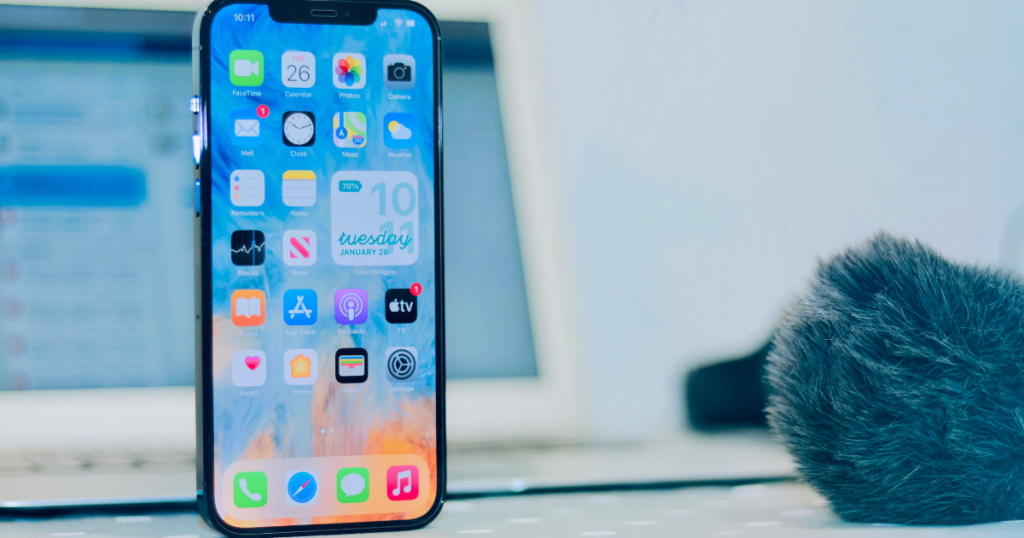
When you are available 24/7, that means that the unwarranted and unwanted phone calls can now occur at pretty much anytime. Where it used to be that blocking a telephone number was borderline impossible, Apple has made it easier for users to stop unwanted phone calls. Here is how.
Blocking or Avoiding Unwanted Calls on iPhone
You can easily manage unwanted calls by identifying, blocking, or sending them to voicemail.
Enable Call Identification
iPhone uses data from Apple Business Connect, your carrier, and call identification apps to help recognize callers.
- Go to Settings > Phone.
- Select Call Blocking & Identification and enable options like:
- Business Connect ID (caller details from Apple Business Connect).
- Carrier Call ID (info from supported carriers).
- Call ID apps (details from third-party apps).
Block Calls, FaceTime, and Messages
- Open the Phone app and tap Favorites, Recents, or Voicemail.
- Select the number or contact, scroll down, and tap Block Caller.
Unblock a Contact
- Go to Settings > Phone and tap Blocked Contacts.
- Tap Edit, then select Unblock.
Send Spam or Unknown Callers to Voicemail
- Go to Settings > Phone, then choose:
- Silence Unknown Callers: Only contacts and recent outgoing calls will ring.
- Silence Junk Callers: Available with certain carriers to silence suspected spam calls.


About Author